UI/UX and CSS
How to Build Accessible Forms in React
By Abid Ali · Published · Updated
Labels, keyboard focus, and error text wired with aria-invalid and aria-describedby. A pattern from a real contact form, without relying on placeholder text.
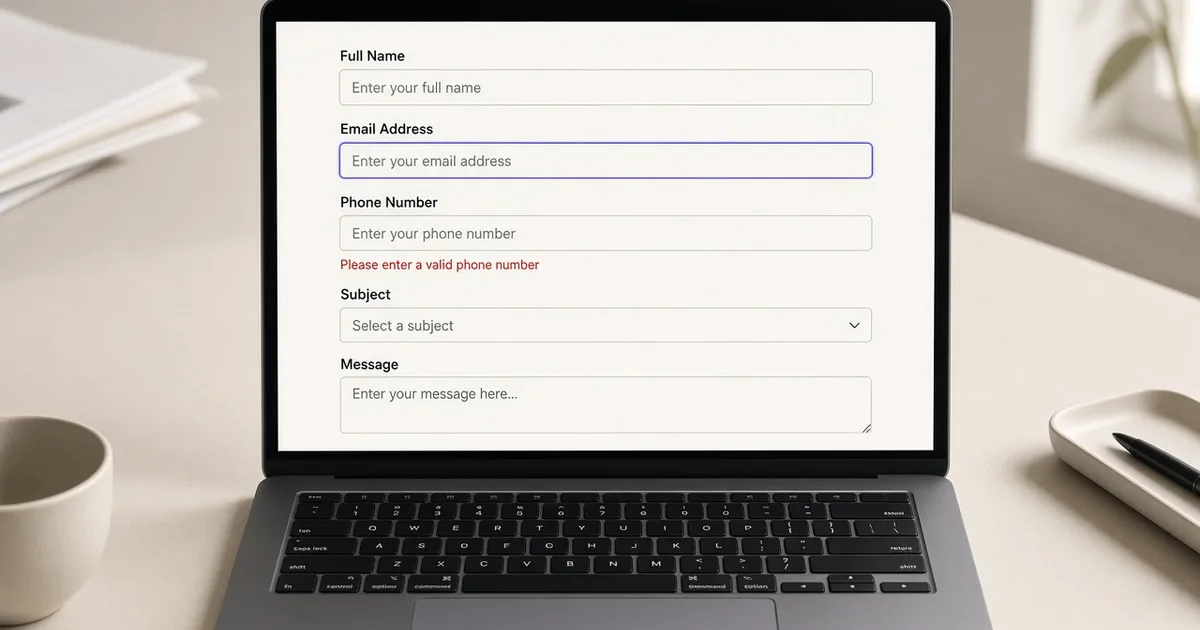
Accessible react forms are forms a person can complete with a keyboard, with the field names announced, and with errors that say what to fix. The markup is ordinary: label, input, button type="submit". React's job is to keep those relationships true after the error state changes.
The contact form on this portfolio is the working example. Each control has a visible label, an id, and aria-invalid when that field fails validation. The error text has its own id. The input points at it.
Tie the label to the control
A label that is only visual is a color and a position. The accessible name comes from <label htmlFor> matching the input id, or from the input wrapped by the label. Placeholders do not count.
function Field({ label, name, error, children }: FieldProps) {
  return (
    <div>
      <label htmlFor={name}>{label}</label>
      {children}
      {error ? <p id={`${name}-error`}>{error}</p> : null}
    </div>
  );
}
The input then uses the same name as its id:
<input
  id="email"
  name="email"
  type="email"
  autoComplete="email"
  aria-invalid={errors.email ? true : undefined}
  aria-describedby={errors.email ? "email-error" : "email-hint"}
/>
autoComplete matters as much as the label. email, name, and similar tokens let a browser fill the field. autoComplete="off" on a real email field fights the user.
This is the base of form labels in React: the htmlFor value and the id are the same string, and that string is unique on the page. Two email fields need two ids.
Accessible error messages
On submit, validate, store the messages, and move focus to the first invalid control. Do not only paint a red border. Color is not the message.
aria-invalid={true} marks the field. aria-describedby points at the paragraph that says what is wrong ("Enter an email address"). When the field is valid again, remove both, or point aria-describedby at hint text instead of the error.
A form-level failure (the request did not send) is a different announcement. Put it in a container with role="alert" so it is announced when it appears. Keep a way to retry that does not wipe what the person typed.
Do not disable the submit button as the only signal that something is wrong. A disabled button is easy to miss, and it removes the control that would have shown the errors. Validate on submit, focus the first problem, and leave the button available.
Keyboard and focus
Tab order should follow the visual order. Do not tabIndex={1} your way through a form. A positive tab index creates a second order and then someone has to maintain it.
After a failed submit, focus the first invalid field. The contact form keeps a field order (name, email, projectType, budget, details) and calls focus() on the first name that has an error. Without that, a screen reader user can be left at the submit button, unaware of which field failed.
Focus styles stay visible. outline: none with no replacement deletes the keyboard indicator. A ring that matches the site's accent is enough.
Click targets for the submit control should be at least about 44px tall. The label's hit area should toggle the control, which is what htmlFor already does.
Native controls first
A native <select> is a keyboard control. A custom dropdown made of divs needs arrow keys, Home, End, Escape, typeahead, and role="listbox". Build that only when the native select cannot express the design. The same rule applies to date fields and checkboxes.
Group related radios with fieldset and legend. "Budget" as a legend beats three unlabeled circles.
Check the form without a mouse
Tab from the top. Each field should announce its label. Trigger an empty submit. Focus should land on the first error, and the error text should be part of that field's description. Fix the value. The error should go away without a refresh. That pass covers accessible react forms better than a contrast screenshot, though contrast still matters: error text in light red on white often fails it. Use a dark danger color and an icon that is aria-hidden, so the icon is not announced as well as the sentence.
Questions
- Is a placeholder a label?
- No. A placeholder disappears while typing and is not announced reliably as the field's name. Every input needs a label element tied to it with htmlFor and id.
- How should an error be announced?
- Put the message in an element with an id, point the input at it with aria-describedby, and set aria-invalid when the value is wrong. Move focus to the first invalid field after submit.
- Do custom select widgets need extra work?
- Yes. A native select is keyboard accessible already. A div with an onClick is not. Prefer the native control unless you rebuild arrow keys, Escape, and the listbox role.
Next in the reading path: React Server Components vs. Client Components in Next.js